Website Subscribe Form & Subscribe Link
Let your readers subscribe to get your new posts by email
Subscribe Form
The Subscribe Form is similar to Blogger’s FollowByEmail widget, or to Mailchimp’s Signup Form:
This form here ☝️ will subscribe you to our own blog. 😇
Here is a sample Subscribe Form snippet with a minimal set of configuration settings:
<script res-subscription-form async
    data-feed-id="FEED_ID"
    src="https://feedsubscription.com/web-ui-scripts/web-ui/subscription-form.js"
></script>
When you register a blog feed with FeedSubscription, it gets its own email address, and
FEED_ID is the part that comes before @.
For example: savvy‑scribe@feedsubscription.com
Want a Subscribe Form on your website?
Subscribe Link
This is similar to Mailchimp’s Signup Form Link, which you can share on social media to collect more subscribers.
Each registered blog feed gets its individual Subscribe Link:
https://feedsubscription.com/to/FEED_ID
When you register a blog feed with FeedSubscription, it gets its own email address, and
FEED_ID is the part that comes before @.
For example: savvy‑scribe@feedsubscription.com
Want a Subscribe Link for your website?
Subscribe Form configuration settings
Below are listed all configuration settings for the Subscribe Form snippet.
-
data-feed-id— requiredWhen you register a blog feed with FeedSubscription, it gets its own email address, and
FEED_IDis the part that comes before@. For example:savvy‑scribe@feedsubscription.com -
data-field-label-text— optionalThe field label text. Default: Get new posts in your inbox:
-
data-field-label-class-name— optionalField label CSS class names, separated by spaces, as you would have them in HTML
classattribute. This is useful for styling. -
data-field-placeholder— optionalThe field placeholder. Default: your@email.com
-
data-field-textbox-class-name— optionalField CSS class names, separated by spaces, as you would have them in HTML
classattribute. This is useful for styling. -
data-button-class-name— optionalButton CSS class names, separated by spaces, as you would have them in HTML
classattribute. This is useful for styling. -
data-button-label— optionalThe button label text. Default: Subscribe
Frequently Asked Questions
How to add the Subscribe Form to a Blogspot blog?
Here are the steps to add the subscribe form to Blogger:
-
For the FeedSubscription.com to be able to collect your subscribers, you first need to create an account and register your blog feed.
-
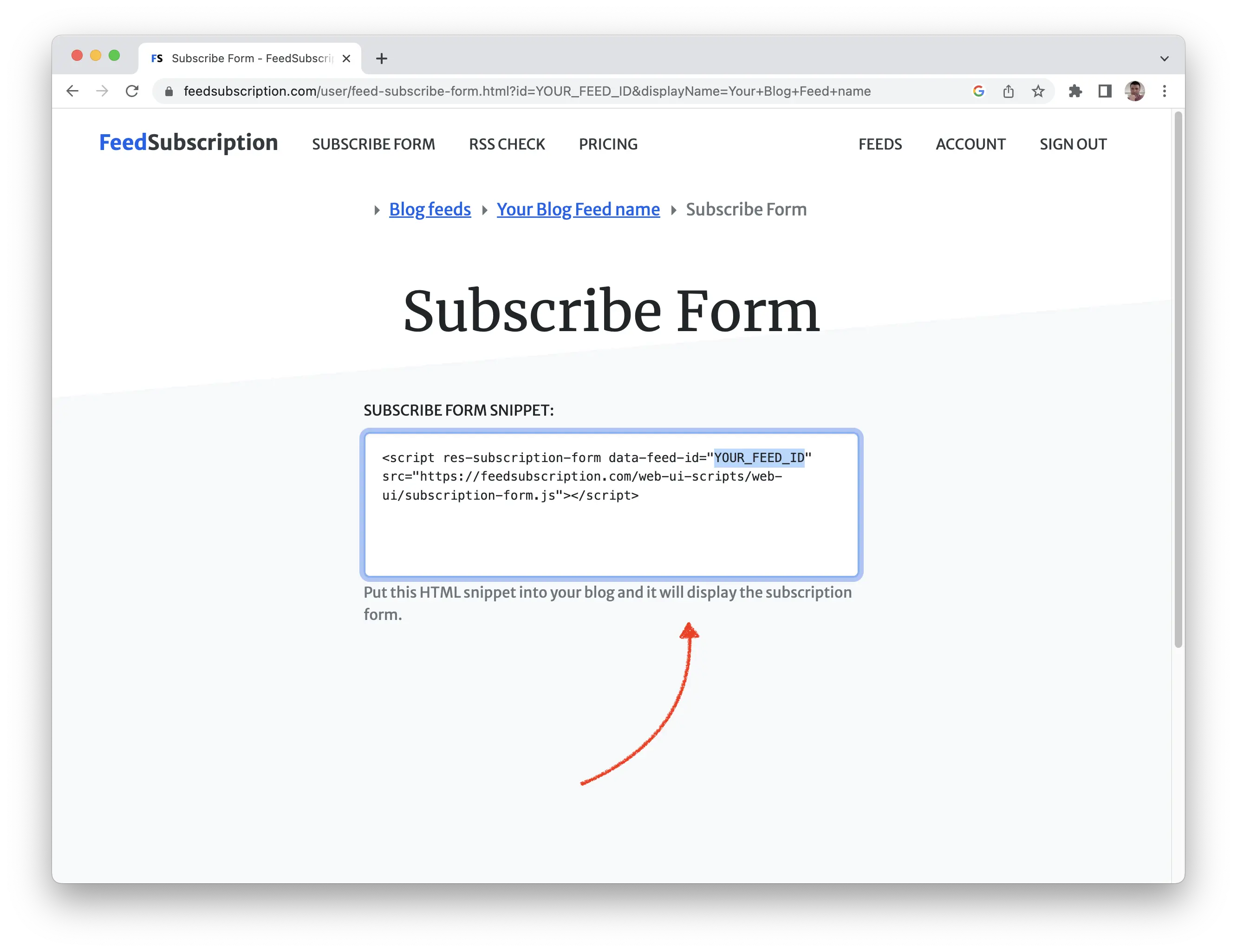
Once you’ve registered the blog feed into the FeedSubscription.com system, you get a code snippet for the subscribe form:
-
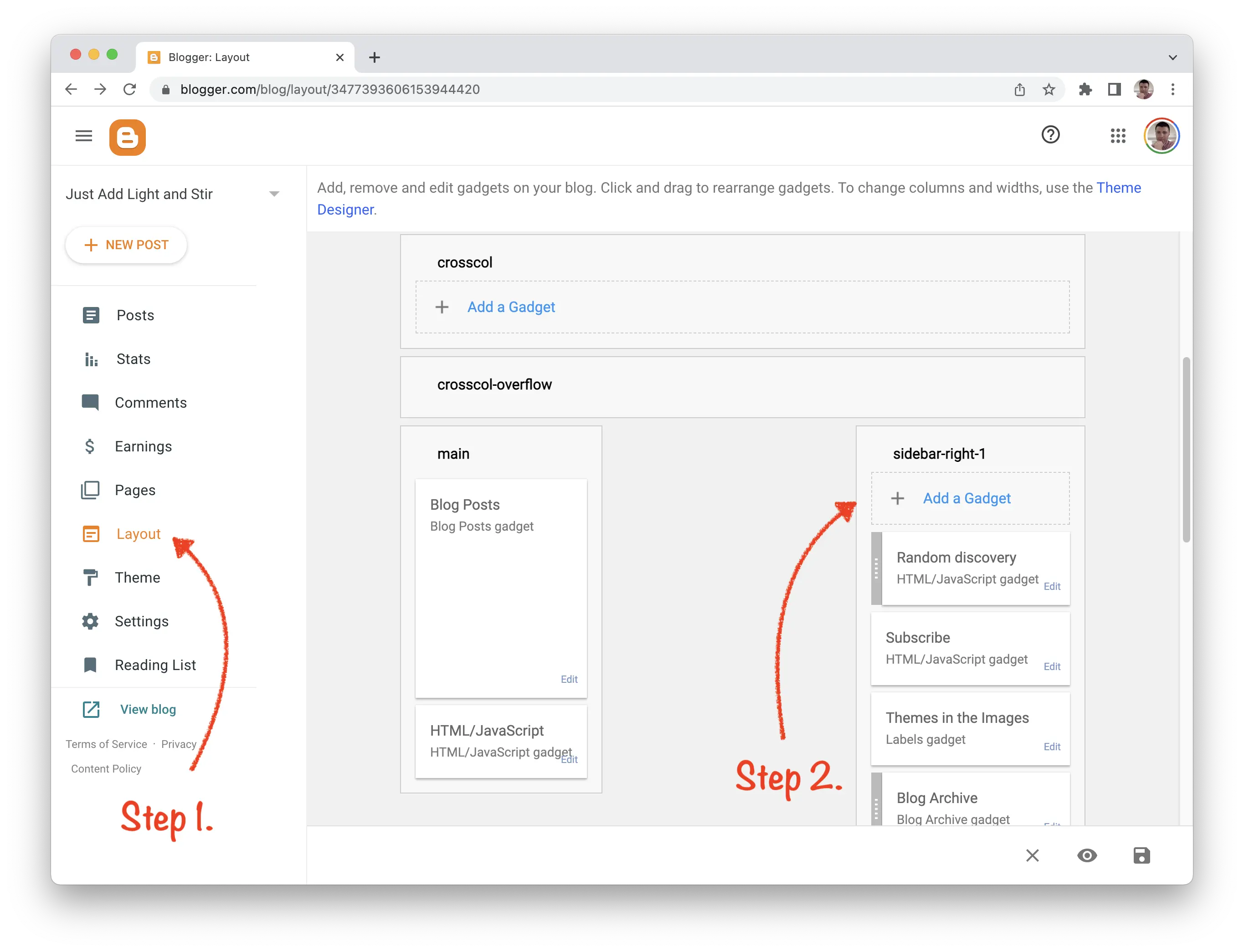
Add the subscribe form snippet into your Blogger blog by using an HTML/JavaScript gadget from the Layout page in your Blogger admin interface.
-
Add a Gadget:
-
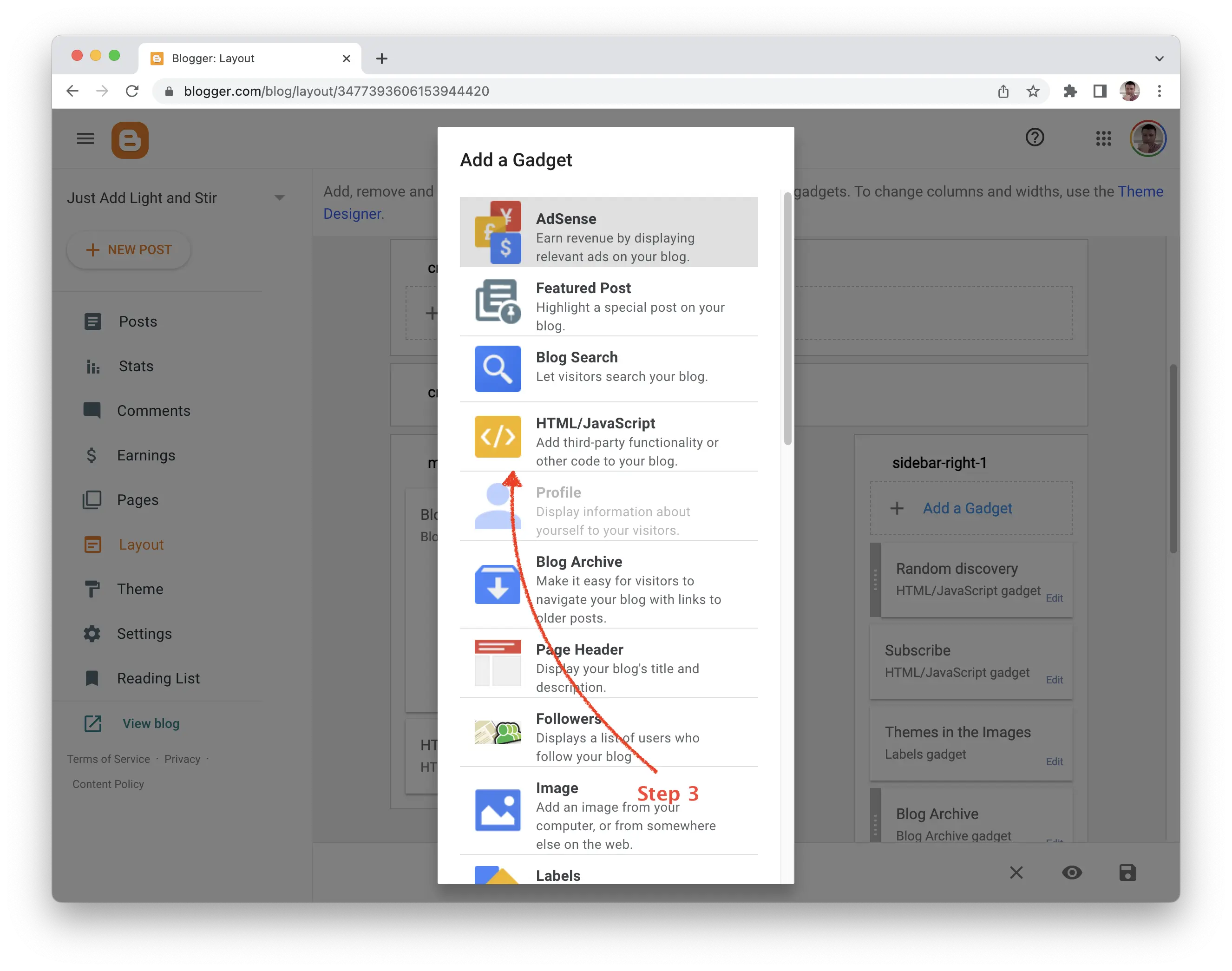
Select HTML/JavaScript from the Gadget list:
-
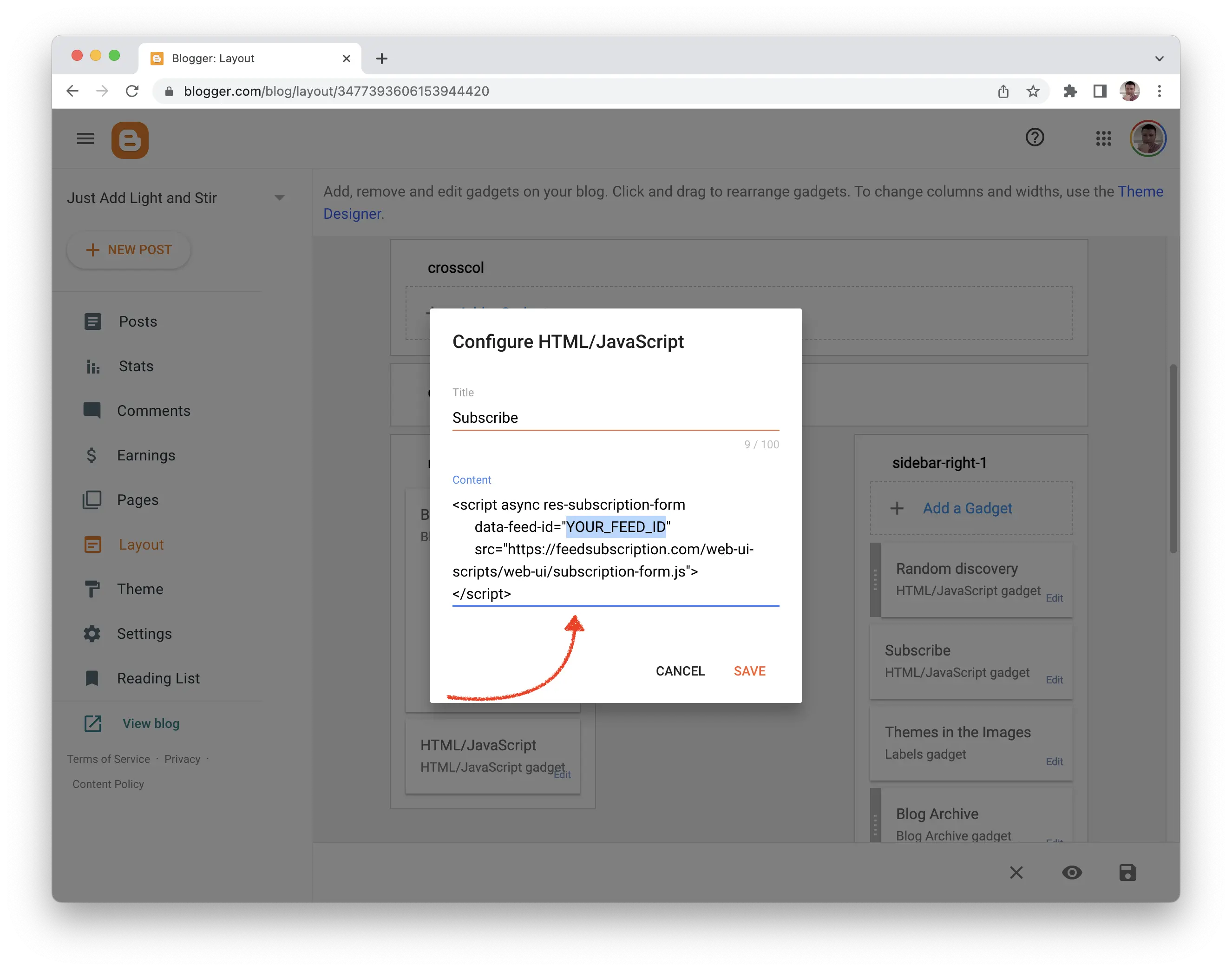
Copy-and-paste your subscribe form snippet into the gadget and click Save:
-
Click to save your layout, and this should do it.
-
How to add the Subscribe Form to my WordPress blog?
Because the snippet is just a tiny piece of HTML code, you can add it with a Custom HTML block as described in WordPress documentation here.
A special note if you’re using Elementor for WordPress: If you have difficulties in making the Subscribe Form display properly, try using Elementor’s own HTML widget instead of WordPress’.
Can I add the Subscribe Form to my Medium blog?
No, sorry. As we mention in the comparison blog post, Medium doesn’t allow HTML embeds at the moment.
How to add the Subscribe Form to my custom blog?
Because the snippet is just a tiny piece of HTML code, you can include it as custom HTML code.
This should work with any website: hosted builders like Wix or Weebly, CMSs like Ghost, or static sites built with Jekyll or Hugo.
Actually, the Subscribe Form can be placed on any website, not only on your blog.